WeiG qB WebUI: A Beginner’s Guide to qBittorrent’s Alternative WebUI
If you usually manage qBittorrent from a browser—especially on a NAS, in Docker, or from a phone—WeiG qB WebUI provides a more comfortable interface for day-to-day use. Live Preview
About seven years ago, I joined a few private torrent trackers. At the time, I installed qBittorrent 4.1.9 on my NAS—it was the latest release. I never imagined I’d still be using it today.
I once tried a major upgrade (to 4.2.5, if I remember correctly), but all the torrent tasks disappeared from the client and I couldn’t keep seeding. I’d accumulated so many torrents that putting everything back was a nightmare. Since then, I’ve preferred to leave a stable setup alone.
After graduating and starting work, I spend less and less time at a desktop. These days I mostly manage my NAS from my phone. The stock WebUI isn’t particularly pleasant on a small screen, and many of the alternative WebUIs I tried didn’t work well with older qBittorrent releases.
That’s why I built WeiG qB WebUI. It covers a range of stable releases from qBittorrent 4.1.x through 5.2.x. If you run into a compatibility issue or have a suggestion, I’d love to hear about it.
WeiG qB WebUI is an alternative WebUI for qBittorrent designed for desktop and mobile use:
- 📱 Responsive on phones
- 🌙 Dark mode
- 🧱 Works with older qBittorrent releases
- ✅ Supports qBittorrent 4.1.x → 5.2.x
- 🐳 Works on Windows, Linux, Docker, and NAS


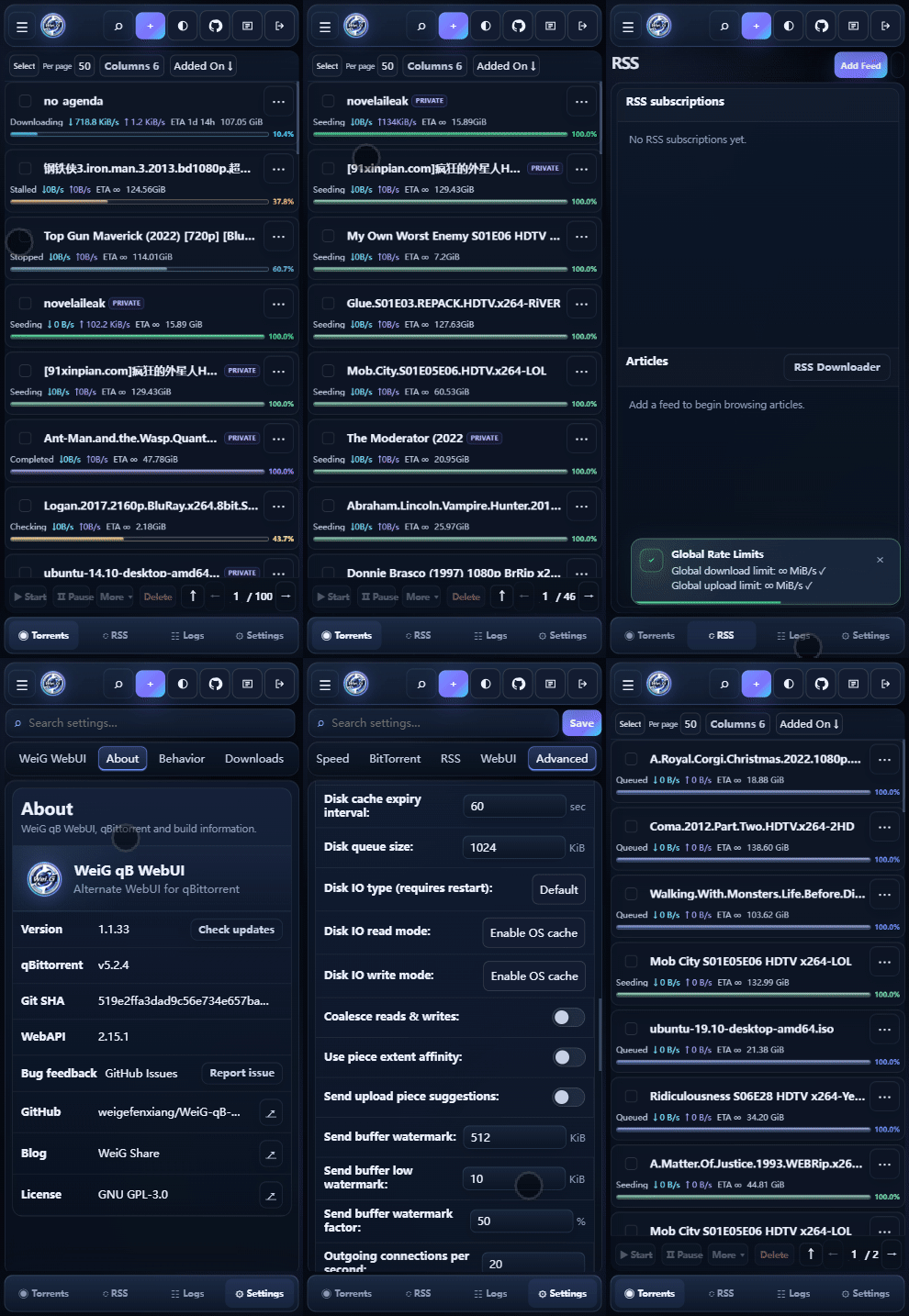
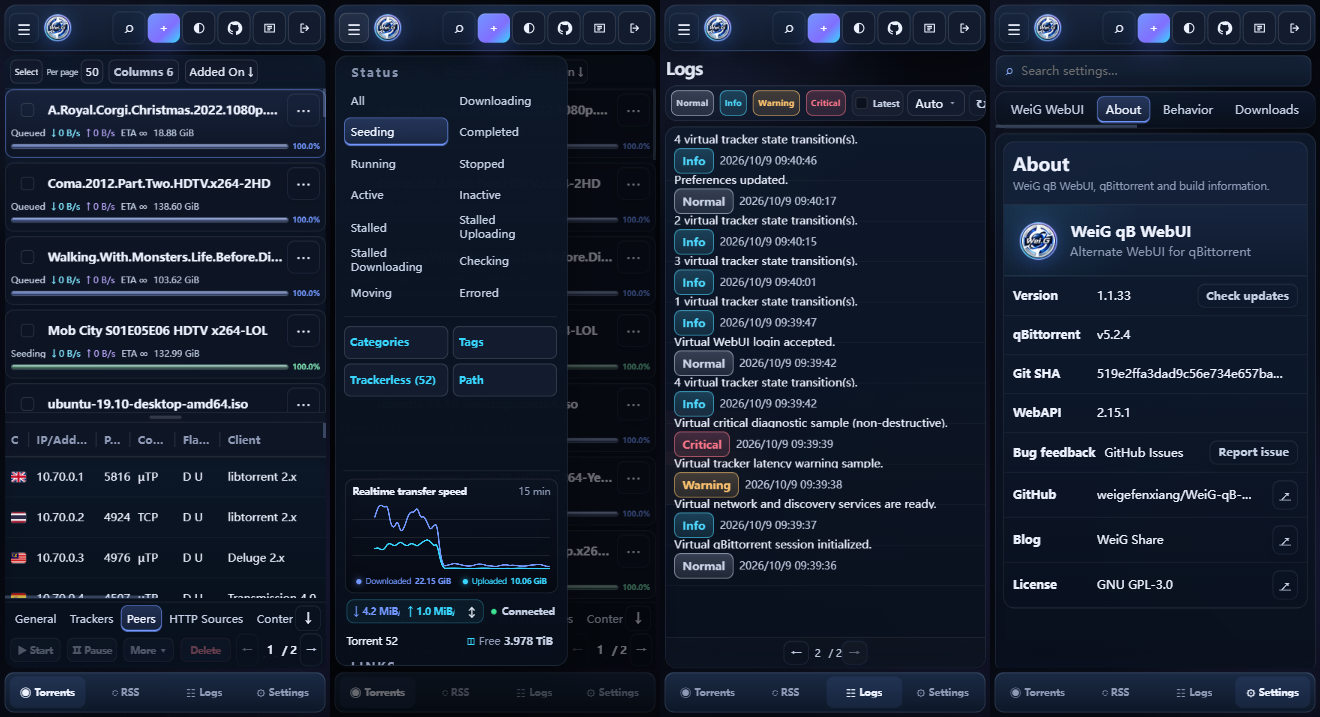
Interface Preview
Desktop
Mobile
New User Installation
First time installing? Expand this 1-minute guide
1. Extract the ZIP
Download the latest stable release weig-qb-webui.zip and extract it. The folder is already named correctly:
weig-qb-webui/
├── public/
├── private/
├── VERSION
└── GIT_SHA
The entire weig-qb-webui folder is the WebUI root. Do not copy only public or private.
2. Move it to a permanent location
Put the whole weig-qb-webui folder somewhere you will not accidentally delete later, for example:
Windows: D:\weig-qb-webui
Linux:   /opt/weig-qb-webui
This is the directory you will enter in qBittorrent.
3. Enable it in qBittorrent
Open qBittorrent:
Tools → Options… → WebUI
These are the current qBittorrent English UI terms. Then:
- Enable Use alternative WebUI.
- Find Files location:.
- Enter the path to the
weig-qb-webuifolder.
Windows example:
D:\weig-qb-webuiRegular Linux example:
/opt/weig-qb-webui- Click OK to save.
- Refresh the qBittorrent WebUI page. If the old page is still cached, try
Ctrl + F5once.
How do I know the path is correct? The directory you enter should directly contain
public,private,VERSION, and the other WebUI files. If you need to enter anotherweig-qb-webuifolder before seeing those files, your path is one level too high or too low.
Docker users: qBittorrent runs inside a container, so you usually cannot enter the host path directly. See the Docker guide below for the difference between host and container paths.
One-click Install
The Linux / NAS installer comes from the fixed Dev Pages URL below. The download URL does not choose the release channel: without -dev it installs the verified stable GitHub Release from main; with -dev it installs the current dev build pinned to an exact Git SHA. Keep the script in the current directory for future updates or rollbacks.
Linux / NAS
curl -fsSL https://weigefenxiang.github.io/WeiG-qB-WebUI/downloads/dev/install.sh -o install.sh && sh install.sh -configureShow script location and default WebUI install directory
./install.shThe WebUI itself is installed by default to:
~/.local/share/weig-qb-webuiFor example, when running as root, this is usually:
/root/.local/share/weig-qb-webuiDocker
Docker one-click install / multiple containers / path guide (recommended for beginners)
First understand “host” and “container”
If qBittorrent is running in Docker on a VPS, Linux server, Synology, QNAP, or another NAS:
- Host: the real Linux/NAS machine that runs Docker — the system you see after SSH login.
- Container: the isolated environment Docker creates for qBittorrent. qBittorrent can directly see container paths, not arbitrary host paths.
For example, your qBittorrent container may have this mapping:
Host:      /root/qbittorrent/config
   ↓ mapped to
Container: /config
A typical Docker Compose entry looks like:
volumes:
  - /root/qbittorrent/config:/config
The left side of the colon, /root/qbittorrent/config, is the host path. The right side, /config, is the container path.
If WeiG qB WebUI is physically installed at:
Host: /root/qbittorrent/config/weig-qb-webuithen qBittorrent Files location: should be:
/config/weig-qb-webuiDo not enter /root/qbittorrent/config/weig-qb-webui in qBittorrent, because the container usually cannot see that host path directly.
Case 1: only one running qBittorrent container
Use the normal one-click command:
curl -fsSL https://weigefenxiang.github.io/WeiG-qB-WebUI/downloads/dev/install.sh -o install.sh && sh install.sh -configureThe installer will try to detect the running qBittorrent container, detect its /config mapping, install the WebUI in the corresponding host location, and configure qBittorrent automatically.
Case 2: find the qBittorrent container name first
If you are not sure what the container is called:
sh install.sh --list-containersYou can also use Docker directly:
docker psIf the qBittorrent container is named:
qbittorrentselect it explicitly:
sh install.sh --container=qbittorrent -configureCase 3: multiple qBittorrent containers
For example:
qbittorrent
qbittorrent-test
List them first:
sh install.sh --list-containersInstall for the main qbittorrent container:
sh install.sh --container=qbittorrent -configureInstall for the test container:
sh install.sh --container=qbittorrent-test -configureThe installer will not silently guess between multiple qBittorrent containers.
Case 4: you already know the host directory mounted as /config
For example:
/root/qbittorrent/configSpecify it directly:
sh install.sh --config-root=/root/qbittorrent/config -configureA Synology path might look like:
sh install.sh --config-root=/volume1/docker/qbittorrent -configureAnother NAS might use something like:
sh install.sh --config-root=/share/Container/qbittorrent -configureThese are examples only. Replace them with the real host path that is mounted as qBittorrent /config.
Case 5: choose the WebUI install path
After selecting a container, you can also choose the container-visible WebUI location:
sh install.sh --container=qbittorrent -o /config/weig-qb-webui -configureThe installer converts the /config/... container path to the corresponding host install path.
Case 6: update multiple existing WebUI directories with one download
For multiple qBittorrent instances, repeat -o. The payload is downloaded and verified once, all targets are prepared before switching, and each target keeps its own latest three backups under ~/.config/weig-qb-webui/backups/.
sh install.sh -dev \
  -o /root/qbittorrent/config/weig-qb-webui \
  -o /root/qbittorrent3/config/weig-qb-webui
Do not add -configure in multi-target mode; each qBittorrent instance keeps its existing Alternative WebUI Root Folder. To see the current command syntax, run sh install.sh -help.
What should I see after installation?
A successful install prints values similar to:
Host install path: /root/qbittorrent/config/weig-qb-webui
qBittorrent Root Folder: /config/weig-qb-webui
Meaning:
Host install path: where the files are physically stored on the host;qBittorrent Root Folder: the container path qBittorrent should use for Files location.
If -configure successfully finds the qBittorrent configuration, the installer enables Use alternative WebUI and sets the path automatically. Otherwise, follow the manual steps in New User Installation → Enable it in qBittorrent above.
Windows PowerShell
Invoke-WebRequest https://weigefenxiang.github.io/WeiG-qB-WebUI/downloads/dev/install.ps1 -OutFile .\install.ps1; powershell -ExecutionPolicy Bypass -File .\install.ps1 -configureShow install directory
C:\Users\<your-username>\AppData\Local\weig-qb-webuiCommon Options
Linux and Windows use the same option names; PowerShell option names are case-insensitive (click to expand)
Linux and Windows use the same public option names where practical. Documentation uses lowercase; PowerShell parameter names are case-insensitive.
| Purpose | Linux / Docker / NAS | Windows PowerShell |
|---|---|---|
| Stable main | Default, no option | Default, no option |
| Specific Release | -version 1.2.0 |
-version 1.2.0 |
| Development build | -dev |
-dev |
| Custom install directory | -o /path (repeatable on Linux) |
-o D:\path or -output D:\path |
| Custom qBittorrent configuration file | — | -qbconfig D:\path\qBittorrent.ini |
| Configure qBittorrent automatically | -configure |
-configure |
| Roll back the previous install | -rollback |
-rollback |
| Complete uninstall (do not keep installer backups) | -uninstall -purge |
-uninstall -purge |
| Full help | -help |
-help |
| Select Docker container | --container=NAME |
— |
| List Docker containers | --list-containers |
— |
Specify host directory mounted as Docker /config |
--config-root=/path |
— |
Notes: (click to expand)
- Without
-dev, the installer uses the verified stable GitHub Release frommain. Adding-devselects the currentdevbuild by exact Git SHA. -omeans output; repeat it on Linux to update several existing WebUI directories in one verified download.- Backups live in
~/.config/weig-qb-webui/backups/, with the latest three kept independently for each install target. -configureenables Use alternative WebUI and sets Files location in qBittorrent. It can only be used with a single target.-rollbackrestores the selected target’s latest installer-owned backup; repeat-oto roll back multiple explicit targets.-uninstall -purgeremoves the WebUI and that target’s installer-owned backups and rollback state, without touching other targets. Empty shared state folders are cleaned up.- Leave off
-purgeif you want to keep backups for a later-rollback. -version 1.2.0selects an exact GitHub Release. A missing release is an error; there is no silent fallback to latest or dev.-helplists the currently supported parameters.- For multiple Docker containers, use
--list-containersand--container=NAME, or select the host’s qBittorrent config folder with--config-root=/path.
Specific version and install directory
Linux:
sh install.sh -version 1.2.0 -o /opt/weig-qb-webui -configureWindows:
powershell -ExecutionPolicy Bypass -File .\install.ps1 -version 1.2.0 -o D:\weig-qb-webui -configureRollback
Linux:
sh install.sh -rollbackWindows:
powershell -ExecutionPolicy Bypass -File .\install.ps1 -rollbackOne-click Uninstall
Linux / NAS, Docker, and Windows PowerShell complete uninstall
The recommended command below performs a complete uninstall without keeping installer backups: it removes the WebUI, disables the matching alternative WebUI configuration, purges installer-owned backups / rollback state for this target, and then deletes the downloaded installer script from the current directory.
Linux / NAS
sh install.sh -uninstall -configure -purge && rm -f -- ./install.shFor a custom install directory, add -o /path/to/weig-qb-webui.
Docker
Single container / automatic detection:
sh install.sh -uninstall -configure -purge && rm -f -- ./install.shMultiple containers:
sh install.sh -uninstall -configure -purge --container=qbittorrent && rm -f -- ./install.shWhen using --config-root:
sh install.sh -uninstall -configure -purge --config-root=/path/to/qbittorrent/config && rm -f -- ./install.shWindows PowerShell
powershell -ExecutionPolicy Bypass -File .\install.ps1 -uninstall -configure -purge; if ($LASTEXITCODE -eq 0) { Remove-Item .\install.ps1 -Force }For a custom install directory, add -o D:\weig-qb-webui.
-purge only removes backups owned by the current uninstall target; it does not touch backups for other installations. When the shared state directory becomes empty, Linux ~/.config/weig-qb-webui (for root: /root/.config/weig-qb-webui) or Windows %APPDATA%\weig-qb-webui is removed as well.
To keep installer backups for a later -rollback, simply omit -purge.
More Help
For Docker multi-container setups, NAS deployment, custom paths, updates, and advanced installation details, see the detailed Installation, Upgrade & Manual Deployment Guide.
License
Licensed under the GNU General Public License v3.
Copyright © 2026 Wei.G / WeiG Share.